
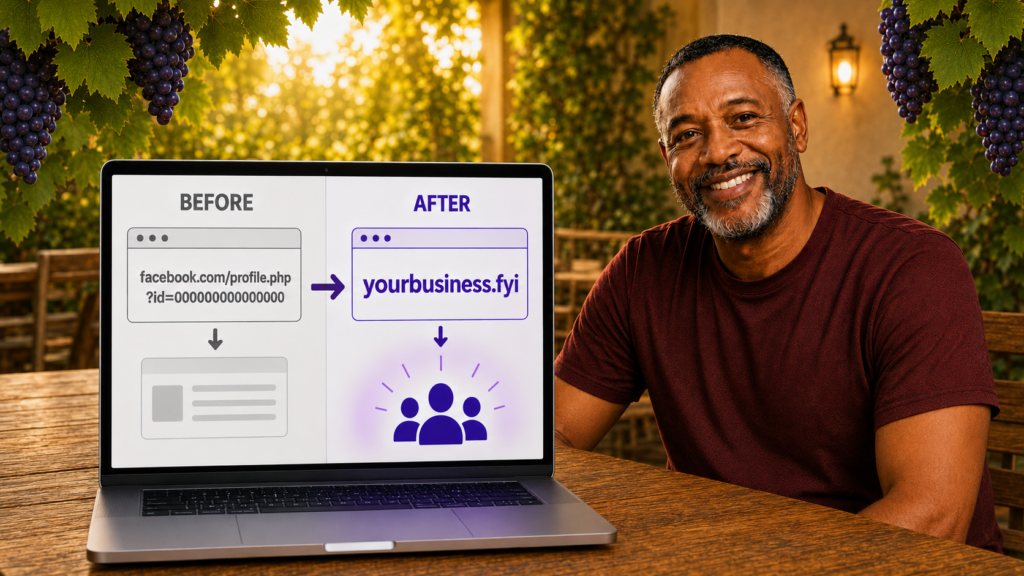
Domain forwarding lets you send visitors who type your Cyber Grapes domain straight to a website, a Facebook Page, or any other web address you choose. It takes just a few minutes to set up and requires no design or technical skills.
Domain Registration
Find and register the perfect domain name, or bring an existing one over to Cyber Grapes.
What Is Domain Forwarding?
Domain forwarding connects the domain you registered through Cyber Grapes to a page that already exists somewhere else online. Instead of building a full website, you can point your domain directly at content you already have.
This is especially useful if your business currently runs on a Facebook Page instead of a full website. Right now, sharing your business online might mean sending people to something like facebook.com/yourbusiness. Forwarding lets you give people a short, memorable address like yourbusiness.fyi instead, and have it take visitors straight to your Facebook Page automatically.
Your Facebook Page stays exactly as it is. Forwarding only changes what happens when someone types your domain into their browser.
Before You Start
Forwarding over HTTPS is applied automatically when you set up forwarding using the steps below. There’s nothing extra to configure, and your domain forwarding will be secure by default.
If your domain doesn’t already use Cyber Grapes nameservers, we’ll update this automatically when you set up forwarding. Most DNS changes take effect within an hour, though it can take up to 48 hours to update everywhere.
How to Forward Your Domain
- Sign in to your Cyber Grapes Domain Portfolio. If you’re having trouble signing in, see Find your username or password.
- Select the domain you want to forward to open its Domain Settings page.
- Select DNS, then select Forwarding.
- Select Add Forwarding, then choose whether you’re forwarding your root domain (for example, yourbusiness.fyi) or a subdomain (for example, shop.yourbusiness.fyi).
- If you’re forwarding a subdomain, enter the subdomain you want to use. We’ll update your DNS automatically, adding the subdomain if it doesn’t already exist.
- Choose whether the destination address starts with http:// or https://. This is the address your domain will forward to, not your Cyber Grapes domain itself.
- Enter the destination address. For a Facebook Page, this is your full Page URL (for example, https://facebook.com/yourbusiness). The address must start and end with a letter or number, and can’t include underscores or consecutive periods.
- Choose a forwarding type: Permanent (301) tells browsers and search engines this is the long-term destination for your domain. Temporary (302) is meant for short-term redirects you plan to remove later. Forward with masking keeps your own domain visible in the address bar while showing the destination content, and lets you add a title, description, and keywords for search engines. Note that not every website supports masking, including some social media pages, so if a masked page shows blank, switch to forward only.
- If you chose Forward with masking, select Next and fill in at least one of the Title, Description, or Keywords fields, then select Save.
- Select Save to apply your forwarding settings. If your domain has Domain Protection turned on, you may be asked to verify your identity with a one-time code sent by text, email, or your authenticator app before the change is saved.
Forwarding Your Domain to a Facebook Page
If your business currently lives on Facebook and you don’t have a separate website yet, forwarding is the fastest way to give your business a real, ownable address without building anything new.
Follow the steps above and use your full Facebook Page address as the destination URL in step 7, for example https://facebook.com/yourbusiness. Choose Forward only rather than masking, since Facebook doesn’t reliably support masked pages. Once saved, anyone who types your domain will be sent straight to your Facebook Page.
This gives you a short, professional address for business cards, invoices, signage, and search listings, while your Facebook Page keeps doing exactly what it already does.
Making the www Version Work Too
If you want both yourbusiness.fyi and www.yourbusiness.fyi to forward, make sure your www CNAME record points to @. See how to edit a CNAME record for the steps.
Good to Know
- Setting up forwarding automatically updates and locks your domain’s @ A record. If you need to change that record later, remove forwarding first.
- Not every destination site supports masking. If a masked page shows blank, switch to Forward only, or check with the destination site about allowing masking.
- For the best account security, consider turning on 2-step verification.
Don’t Have a Domain Yet?
You can register a domain and set up forwarding to your Facebook Page or existing website in the same visit. Visit Domain Registration to get started, or explore Professional Email if you’d also like an email address that matches your new domain.
Domain Registration
Find and register the perfect domain name, or bring an existing one over to Cyber Grapes.